Tool Tracking App
Check a tool out to a name with a due date, check it back in, and see at a glance who has what and what is overdue.
Free · runs in your browser · nothing is uploaded
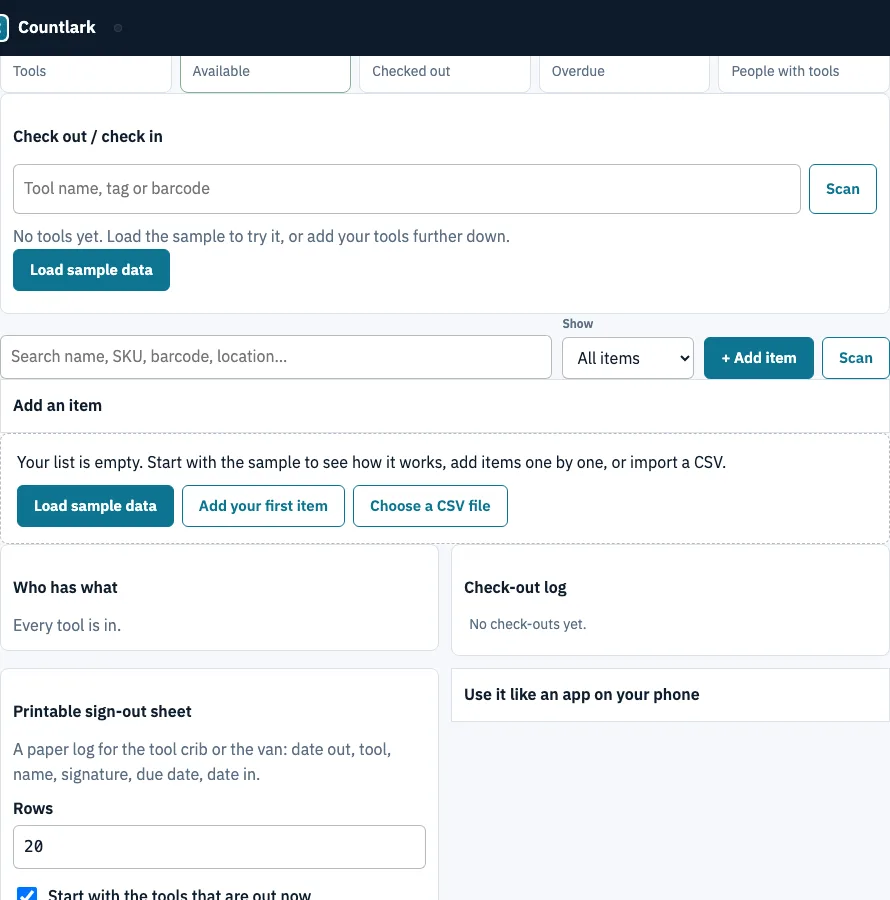
How to use the tool tracking app
- Open the ‘Check out / check in’ panel. Find the tool by name, tag or barcode, or click Scan to read its tag with your camera.
- If the tool is available, type the person’s name in ‘Checked out to’. Names used before appear as suggestions.
- Check ‘Due back’. It defaults to today plus the ‘Default loan period (days)’, which is 7 unless you change it in the settings (0 there means no due date). You can also change or clear the date for one check-out.
- Add an optional note, then click ‘Check out’.
- To return a tool, find it again. Its status shows Out, so enter an optional ‘Condition / note’ and click ‘Check in’.
- If you made a mistake, use the undo option in the message that appears.
- Open ‘Who has what’ to see tools out by person, with overdue tools listed first.
- For paper, open the ‘Printable sign-out sheet’. Choose the number of rows (default 20) and keep the option ticked to start with the tools that are out now.
The Scan button opens a camera scanner that runs inside the page. A USB or Bluetooth scanner also works, because it types like a keyboard. For a fast crib counter, pick the scan mode ‘Check in, or check out to the last name used’.
How do I keep track of jobsite tools?
Check each tool out to one named person, with a due date that matches the job. The list then shows which tools are still out and which are overdue, so a missing tool shows up on its own line. Work through it this way:
- Set the default loan period to the length of a typical job, or to 0 for tools that stay on site for the whole project.
- Check each tool out to the person who will carry it, and add a note with the site or job name. The note stays in that tool’s history.
- Check the tool in from the same panel when it comes back, and record any damage in the condition note.
Overdue means a tool is still checked out and its due date has passed. Days out and days late are counted in calendar days. For example, a drill checked out on 20 October with a due date of 22 October, then checked in on 24 October, shows 4 days out and 2 days late. Each tool keeps up to 200 history entries, and the panel shows the latest five.
Can I generate reports on tool usage and inventory?
Yes. The dashboard gives counts for your whole inventory, and the lists below it show who has which tool and what has been logged. Each view covers a different question, so use the one that matches what you need to check.
| View | What it shows |
|---|---|
| Dashboard | Totals for Tools, Available, Checked out, Overdue and People with tools |
| Who has what | Tools that are out, grouped by person, overdue first |
| Check-out log | Latest entries for all tools, with a ‘Download the log (.csv)’ option |
| CSV of this view | Visible columns after search and filter, including calculated columns like Days out |
| Download Excel (.xlsx) | The full list as a spreadsheet |
| CSV with every field | Every field in one file |
Frequently asked questions
What is the best app to track tools?
The best choice depends on how many devices need the same list. This tool is free and works on one device at a time, with no sign-up, and it tracks who has each tool, due dates and overdue items. If several phones need to share one list, this page cannot do that because it does not sync between phones.
Can you put a tracker on tools?
This page tracks custody, meaning who has a tool, not where it is. GPS and Bluetooth trackers are separate hardware that this page does not read. For tags on your tools, QR or barcode labels can be made on the asset tracking page, which uses the same list.
Can I track who last used a tool?
Yes. Each check-out and check-in is saved with the tool, including the name, the date, the due date, the note, days out and days late. The panel shows the latest five entries, and each tool keeps up to 200.
Is there a mobile app for tool tracking?
This is a web page that you open in your phone’s browser; on Android it can be installed with the Install app button, and on iPhone added to the Home Screen from Safari. Each device keeps its own list, and phones do not sync with each other. The camera scanner runs inside the page and sends no images anywhere.
What is equipment tracking software?
Equipment tracking software keeps a record of your equipment, such as what you own, where each item is kept, and who has it. Some programs also store condition and maintenance history. This tool covers the custody side: the home location, who has each tool, and the check-out history.
How do construction companies track equipment?
Many crews give each item a tag, record who takes it out, and set a return date. This tool handles those check-outs with due dates, overdue flags and notes.
What are the benefits of tool tracking software over a spreadsheet?
A plain spreadsheet holds a list but does not flag overdue tools or log each check-out. This tool calculates Days out and Days late, shows an Overdue status, and keeps a history per tool. You can still move your data in both directions, since you can import a CSV or cells pasted from Excel and export the list again.
Can I print a tool sign-out sheet?
Yes. The printable sign-out sheet has columns for Date out, Tag, Tool, Name, Signature, Due back, Date in and Checked by. Choose the number of rows (default 20), and you can start with the tools that are out now so they are already listed.
Related tools
- Inventory app: use it to track general stock across your items, not only tools that are checked out.
- Small business inventory software: use it for stock you sell, with margins and purchase orders per supplier.
- Inventory management app: use it when you need to record stock coming in and going out.
- Bar inventory app: use it to count bottles in tenths against par for a bar.
- Asset tracking app: use it to make QR or barcode labels for tool tags, since it shares the same list.
- Inventory count sheet: use it to run a blind count and see the variance.