Inventory Count Sheet
Create a count session, print blind sheets or count on screen, and get a variance report you can apply to your stock list.
Free · runs in your browser · nothing is uploaded
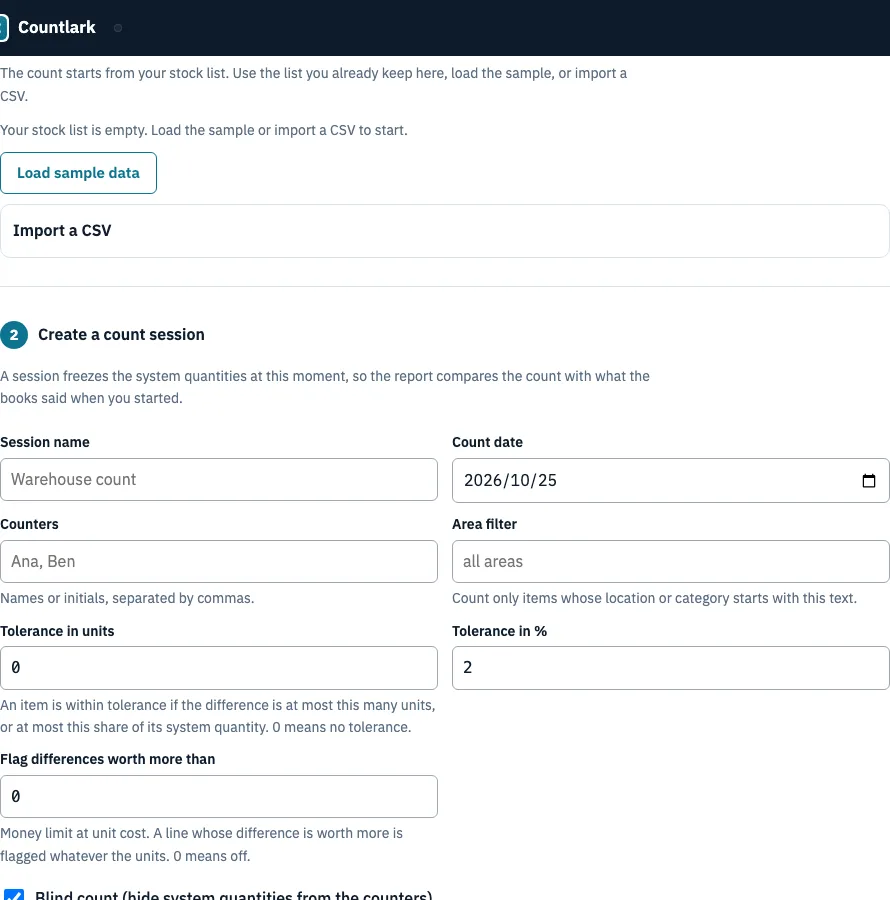
How to use the Countlark inventory count sheet
- Load your items. Your stock list is the one saved in this browser. Click Load sample data to see the format, or Import a CSV by pasting or choosing a file. Column names are recognised in 11 languages, and you pick whether to update, add as new or replace.
- Create a count session. Enter a Session name, Count date and Counters. Optionally set an Area filter, a Tolerance in units and in %, a money limit under ‘Flag differences worth more than’, and tick Blind count. Creating the session freezes the system quantities.
- Count. Click ‘Print blank count sheets’ for paper, or ‘Count on screen’ to type quantities, where Enter moves to the next row. For scanned items, use ‘Scan or type a code’ with a USB or Bluetooth scanner, or ‘Scan with camera’.
- Read the variance report. Check the tiles, then work through the Recount list, which shows out-of-tolerance lines with no recount yet. Use ‘Print recount sheet’ or ‘Enter recounts on screen’.
- Apply to your stock list. Choose Every counted line that differs or Only lines out of tolerance, then click the apply button twice to confirm.
Download CSV, Download Excel, or ‘Print report with sign-off page’ are available from step 4. If an apply was wrong, ‘Undo this apply’ restores lines still at the counted quantity and leaves any line that changed since.
How do I conduct a physical inventory count?
Walk the shelves, count each line once, and compare the result with the system quantity. Start by choosing a time when stock is not moving, or split the count by area using the Area filter.
- Print blank count sheets in walking order, or set up the count on screen.
- Count each line. In a blind session, counters write only what they see.
- Recount any line that falls out of tolerance before you change stock.
- Apply the counted quantities once the report is checked.
What is the difference between a blind and non-blind inventory count?
A blind count hides the system quantity from counters, so they record only what is on the shelf. A non-blind count shows the expected figure, which makes it easier to check but easier to copy. Either way, the variance report still shows the system quantity.
| Feature | Blind count | Non-blind count |
|---|---|---|
| System qty on printed sheet | Left out | Shown |
| On-screen table | No system quantity shown | Shown |
| Variance report | Shows system qty | Shows system qty |
Qoblex recommends blind counts for year-end, high-value items and audits (page read 25 October 2026).
What counts as an acceptable variance in a stock count?
An item is within tolerance when its difference is at most the unit tolerance, or at most the tolerance percentage of its system quantity. The defaults are 0 units and 2 %. A line worth more than your money limit is flagged whatever its unit difference. A system quantity of 0 has no percentage.
Difference = Counted - System qty. Diff % = difference / system qty. Value of difference = difference x unit cost.
Worked example: counting the sample shop
With the sample shop (12 lines, tolerance 0 units and 2 %), 11 lines were counted: 7 exact and 4 out of tolerance.
| Item | Counted | System | Difference | Diff % | Value |
|---|---|---|---|---|---|
| Ceramic mug blue | 46 | 48 | -2 | -4.2 % | -6.40 |
| Green tea tin | 7 | 8 | -1 | -12.5 % | -2.40 |
| Soy candle cedar | 26 | 25 | +1 | +4 % | +4.50 |
| Notebook A5 | 39 | 40 | -1 | -2.5 % | -1.90 |
Record accuracy is 7 of 11 = 63.6 %. Shrink (value of shortages) is -10.70, overage is 4.50, and net difference is -6.20. Set the tolerance to 1 unit and the three 1-unit differences are accepted. Accuracy rises to 10 of 11 = 90.9 %, and only the mug is flagged.
How do I reconcile inventory count discrepancies?
Recount first, then decide what the difference means. The recount becomes the counted quantity when one exists.
- Recount each line on the Recount list.
- If the recount still differs, look for the likely cause: miscount, damage, shrinkage or write-off.
- Record the cause and the approver in your own notes.
- Apply the counted quantities, choosing Only lines out of tolerance to adjust flagged lines alone.
- If an apply was wrong, use Undo this apply.
Should I run a full inventory count or a cycle count?
A full count gives one number on one day but stops operations for a short time. A cycle count checks a few items often and keeps work running. This tool supports both: for a full count, leave the Area filter empty; for cycle counts, filter one area at a time. The Cycle counting planner on this site plans the cycle option.
| Factor | Full physical count | Cycle count |
|---|---|---|
| Operations | Stops for a short time | Continue |
| Result | One figure on one day | Small groups counted often |
| Setup here | No Area filter | One area per session |
Frequently asked questions
What is an inventory count sheet?
It is a printed or digital form for recording the quantity of each item you physically count. Each line has the item, its expected quantity and a blank for the actual count. The printed sheet here has Location, SKU, Item, Unit, System qty (left out in a blind count), First count, Recount and Initials columns.
What is the easiest way to count inventory?
Count one area at a time with a scanner or the camera. In the count on screen table, each scan adds 1 to that item in the column you chose, so scanned items need no typing.
How do we prepare for a physical count?
The hardest part is usually finding the right time, so pick a window when stock is quiet. Load your stock list, create a session (with the Area filter if you count in parts), print blank count sheets and assign counters before counting starts. inFlow suggests closing pending sales orders and stopping receiving during the count.
How do I make an inventory sheet, and what should it include?
Load your stock list, create a session and click Print blank count sheets. A good sheet identifies each product (SKU, item, location), shows stock levels and leaves room for the count. Stocksmith and Qoblex publish free templates too; this page also keeps the results and works out the variance.
Can Excel or Google Sheets track inventory?
Excel works well for a small inventory, and formulas can calculate values and flag differences. The Excel download here has a Variance sheet with live formulas for difference, percentage, value and status. For Google Sheets, import the CSV or Excel file with File > Import; we did not test that ourselves.
Do I need special software to use this template?
No. You need a web browser and, for paper sheets, a printer. Download a copy for a permanent record, because clearing browser data deletes saved sessions.
What is the best free inventory counting app?
The best app is the one that fits how many items you count and who counts them. This page counts on screen, with a USB or Bluetooth scanner or the phone camera, supports blind counts and works out the variance, but it keeps one list in one browser and has no shared accounts.
What do I do with the variance after a count?
Recount the flagged lines first, then decide what the difference means. When the figures are confirmed, use Apply counted quantities to set your stock list to them; each change gets a log entry marked with the session. Keep a note of the cause, such as miscount, damage, shrinkage or write-off, and of who signed it off.
Related tools
- Cycle counting planner: use it to plan which items to count each week for cycle counts.
- Inventory list template: use it when you need a simple list of stock to fill in by hand.
- Inventory spreadsheet: use it when you prefer to track stock in rows and formulas over time.
- Inventory management app: use it when you need stock tracked beyond a single count.
- Bar inventory app: use it for counting stock in a bar or venue.
- Small business inventory software: use it for ongoing stock records in a small shop.