Inventory Barcode Labels
Turn your stock list into barcode labels on a real label sheet, with a valid EAN/UPC where an item has one and the SKU as Code 128 for the rest.
Free · runs in your browser · nothing is uploaded
This free inventory barcode label maker runs in your browser and turns your stock list into printable labels. It reads the list saved on this device, or a list you paste with a header row, and lays the labels out on a real label sheet such as Avery 5160. Choose from 90 sheet layouts, check the preview and download a vector PDF at true size. Nothing is uploaded and there is no sign-up.
Each item gets one code. If its barcode field holds a valid EAN-13, UPC-A, EAN-8 or GTIN-14, that retail code is used; otherwise the SKU is printed as Code 128. The same page makes bin and shelf labels, one per storage location, so racks and stock can both be scanned.
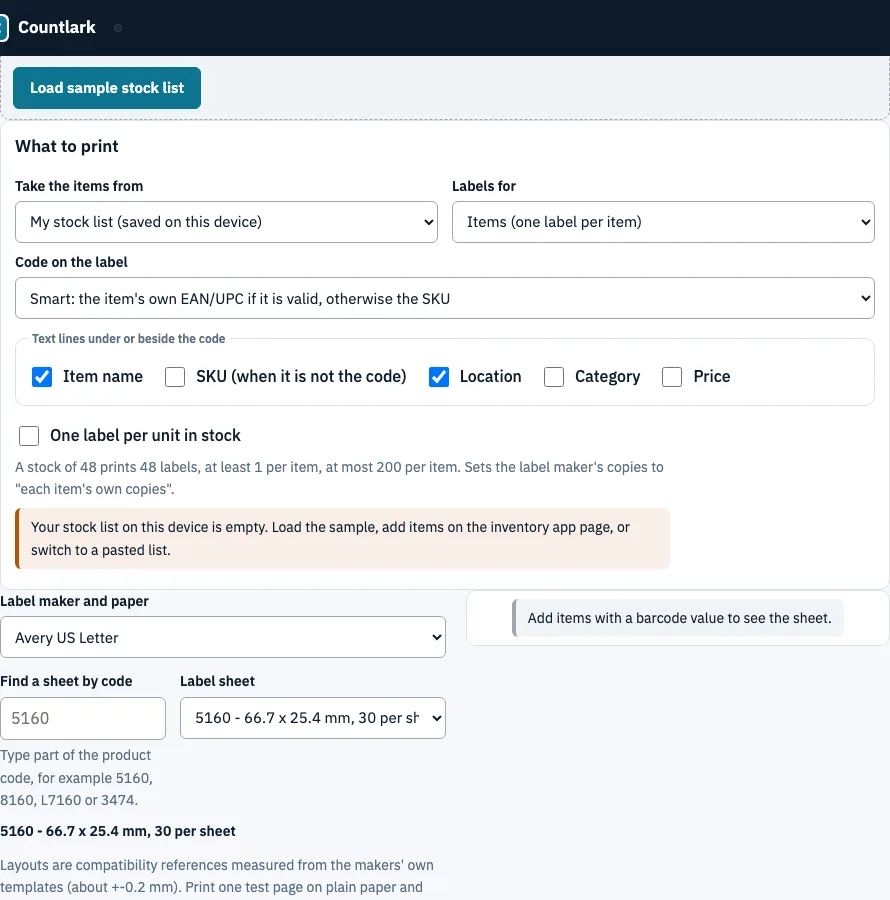
How to make inventory barcode labels
- Under Take the items from, choose My stock list or A list I paste here. A pasted list needs a header row with names such as SKU, Name, Barcode, Location and Quantity.
- Under Labels for, choose Items (one label per item) or Bins and shelves (one label per location).
- Under Code on the label, keep Smart (valid EAN/UPC if the item has one, otherwise the SKU), or choose Always the SKU or Always the barcode field.
- Tick the text lines you want: item name, SKU, location, category, price. Tick One label per unit in stock to print as many labels as you hold units.
- In Label maker and paper, pick the maker and sheet, or find it by code, such as 5160.
- Read the notes under the preview: narrowest bar width, short bars, text that does not fit. Press Check that every code reads to decode every label again.
- Press Download PDF. Print at 100% (Actual size) on a laser or inkjet printer, using Print options, Start at label no. for a partly used sheet.
Print one test sheet and scan it with the scanner you will use before printing a full run. Bins and shelves labels can be printed more than once per location with Labels per location, and every setting here is remembered on this device.
How do you barcode your inventory?
Give every item one code that is unique in your list, print it on a label and scan the label whenever stock moves instead of counting by hand. Decide first whether the code names a unit, a SKU or a storage location. The steps follow.
- Use the retail EAN or UPC for items that already carry one. Use your own SKU as Code 128 for everything else.
- Print one label per item, one per unit when you track units, and one per bin or shelf.
- Add only the text people need, such as the name and the location.
- Test-print on your label stock, scan the result, then print the full run.
How do I choose the right size for my barcode labels?
The label must be wide enough for the code at about 0.19 mm per bar width or more. That figure is this page’s rule of thumb for ordinary linear scanners, not a standard. The longer the code, the wider the label. These widths were computed on a 66.68 x 25.4 mm label with the code on the left.
| Code on the label | Type | Printed width per module | Result |
|---|---|---|---|
| SKU MUG-BL | Code 128 | 0.319 mm | No warning |
| Retail EAN 4006381333931 | EAN-13 | 0.341 mm (GS1 nominal 0.33 mm) | Within GS1 range |
| SKU BOLT-M8-40-ZN-A12, 17 characters | Code 128 | 0.159 mm | Flagged as too narrow |
| Same SKU, code-only layout | Code 128 | 0.266 mm | No warning |
Keep SKUs short. Code 128 packs two digits into one symbol: 12 digits need 101 modules, and ABC-123 needs 112, which is 25.1 mm wide at 0.19 mm per module with quiet zones.
Which barcode symbology should I use, Code 39 or Code 128?
Use Code 128 for internal SKUs unless another system demands Code 39. It reads the full ASCII set and packs the same text into fewer modules: ABC-123 is 112 modules in Code 128 and 143 in Code 39, and 12 digits are 101 against 223.
| Code 128 | Code 39 | |
|---|---|---|
| Characters | Full ASCII | Capitals, digits, - . space $ / + % |
| 12 digits | 101 modules | 223 modules |
| Good for | Internal SKUs, longer codes | Systems that already read it |
Frequently asked questions
What are inventory barcode labels?
Inventory barcode labels are printed stickers that carry a code for one item, one unit or one storage location. A scanner reads the code, so a stock movement can be recorded without typing or counting by hand, and the same label can be scanned again on the next stock take.
What are the best ways to label inventory items?
Give every item or unit its own code and add the name and location as plain text. Label each shelf or bin with a location code too, and apply one rule to the whole list. This tool prints item labels and bin labels.
What are the best labels for inventory tracking?
Pick the stock by where it will live. Paper suits dry indoor shelves, while polyester or vinyl suits cold, damp, hot or outdoor places. This page cannot test label material, so scan a printed sample before you buy a roll.
Can I make my own barcode labels?
Yes, for your own stock. A Code 128 SKU costs nothing to make and works inside your business. For products sold through retailers or marketplaces that check the number, buy UPC or EAN numbers from GS1 instead of inventing them.
What is the difference between an internal SKU barcode and a UPC?
A SKU is a number you assign that only means something inside your business. A UPC is registered with GS1 and identifies a product for every seller, so never print a made-up number in EAN or UPC format, because a scanner will treat it as a real product.
Can you print barcode labels on a regular printer?
Yes. The label sheets work on an ordinary laser or inkjet printer. Print at 100% scale (Actual size), not Fit to page, and use the offsets under Print options if your printer drifts. Print a test on plain paper first and hold it against a sheet.
What causes barcode labels to fail?
Bars that are too narrow, a missing quiet zone, scuffed or faded labels and the wrong stock for the conditions. The page warns about narrow bars, and the number printed under the bars lets someone type it in when a label is damaged.
Should I use QR codes or barcodes for inventory tracking?
Use a linear barcode such as Code 128 when the label only needs a number. Use a QR code when it must hold more, such as a link or several fields, or when phones will read it. Both are in the Barcode type list of the label maker.
Related tools
- Avery 5160 template: fill address labels on the 30-per-sheet layout.
- Barcode inventory app: scan the labels to count stock.
- Barcode scanner to Excel: log scans as rows in a spreadsheet.
- Asset tracking app: tag equipment instead of stock.
- Inventory app: build the stock list your labels come from.
- Inventory management app: record stock in and out after labelling.