Barcode Inventory App
Scan items with your phone camera or a USB scanner, count one line per barcode and see how the count differs from your stock list before you apply it.
Free · runs in your browser · nothing is uploaded
This barcode inventory app is a free scan-to-count tool in your browser. Scan or type barcodes and the page keeps one counted line per code, compares each line with the quantity in your stock list on this device, and can write the counts back to that list.
You can scan with a phone or laptop camera, a USB or Bluetooth scanner, or by typing or pasting codes. There is no account and no sign-up, and nothing is uploaded: the count and the stock list are saved in this browser only. It is built for one person on one device, such as a shelf count, a stock take or a goods-received check in a small shop, a storeroom or a home pantry.
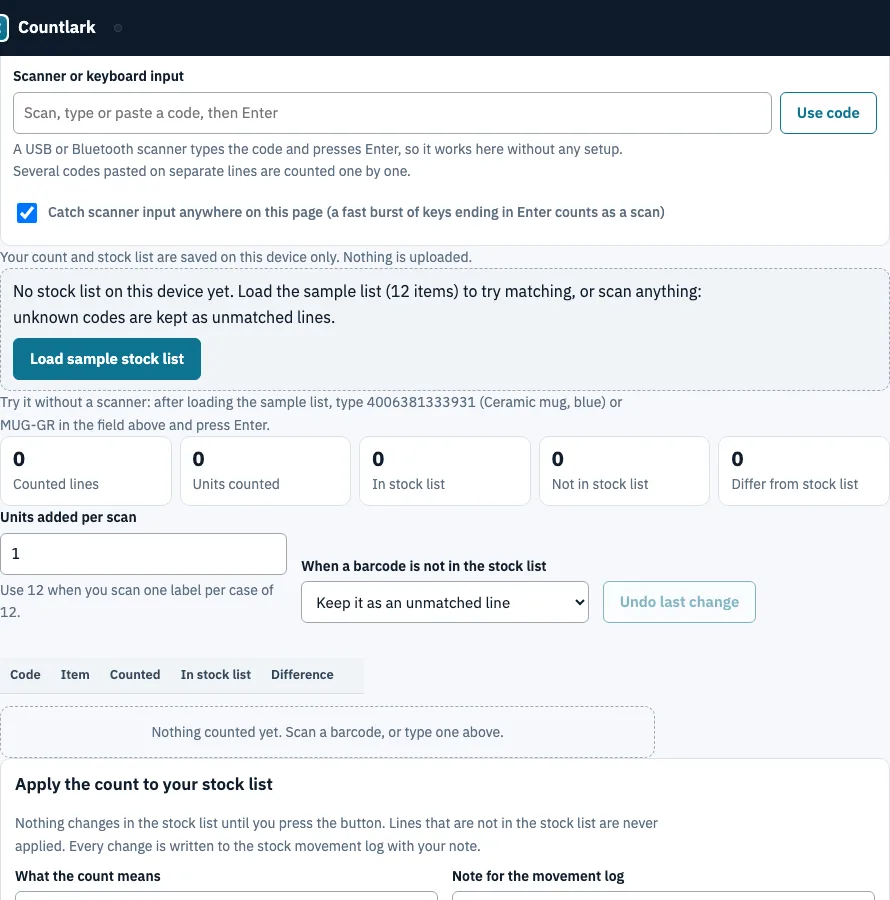
How to count stock with the barcode inventory app
- Load your stock list. Press Load sample stock list to try the 12 sample items, or use the list already saved on this device from the inventory app page.
- Choose how to enter codes. Press Start camera scanner for the rear camera, scan with a USB or Bluetooth scanner (no setup), or type or paste codes into the field, one per line.
- Scan each item. Every scan adds 1 to that line. For a case of 12, set Units added per scan to 12 first.
- Check the table: Code, Item, Counted, In stock list and Difference. Fix a line with the - and + buttons or a typed quantity, or remove it with the x button.
- Deal with unknown codes. Add to stock list asks for a name and the quantity on hand. Or choose Ask for a name and add it as a new item and the prompt opens for each new unknown code.
- Under Apply the count to your stock list, choose Set stock to the counted quantity (stock take) or Add the counted quantity to stock (goods received), add a note, and press the apply button twice.
- Press Undo last change at any time, or Undo this apply to put the stock list and log back.
In low light use the torch button when your phone has one. The camera panel can also read a photo of a barcode.
What is the difference between SKU and UPC?
A SKU is your own internal item code. A UPC is a product number registered with GS1 and is the same for every seller of that product. This tool matches both, so a scan finds the item whichever one you have stored.
| Code | Who assigns it | Same for every seller? | Where the tool looks |
|---|---|---|---|
| SKU | You | No | SKU field, not case sensitive |
| UPC or EAN | GS1 registration | Yes | Barcode field |
A scan is looked up in the barcode field first, then the SKU, then the exact item name. If two items share a code, the first one in the list wins, so keep codes unique; the Inventory barcode labels page flags repeated codes.
How does a count change your stock?
Difference is the counted quantity minus the In stock list quantity. Applying the count makes the list match what you counted and writes each change to the stock movement log with the old and new quantity. Unmatched lines are never applied.
In the sample list, Ceramic mug, blue (barcode 4006381333931) has 48 in stock. Count 45, choose Set stock and the Difference shows -3; the quantity becomes 45 and the log gets one entry, 48 to 45. With Add instead, counting 5 and then 7 of Ceramic mug, green (12 on hand) adds 12 and makes 24.
Do different spellings of one barcode count as one item?
Yes. A UPC-A, the same number as an EAN-13 with a leading 0, a UPC-E and a GTIN-14 with a leading 0 are one product. Scanning 036000291452 and then 0036000291452 adds both to the same line, whichever spelling is stored in the Barcode field or printed on the package.
The camera also ignores the same code for 1.5 seconds, so a label held in view is counted once. Code 39 and ITF carry no check digit inside the symbol, so the camera needs two identical reads in a row before it counts them.
Frequently asked questions
What is the best free barcode inventory app?
This one is free, runs in the browser and needs no account, which suits one person counting a pantry, a craft shelf or a small storeroom. If you need several users, sync between locations or purchase orders, it is not built for that.
How do barcodes help with inventory?
A scan records an item in one step, so nobody reads names or types quantities by hand. The code is matched to the barcode, SKU or name in your list, so the right line is found even if only one of them is filled in.
How to keep track of inventory with barcodes?
Give each item one code, keep one stock list, count on a regular schedule and apply each count. Every applied change is logged as Count or In with the old and new quantity, so you can see what changed and when.
What if an inventory item does not have a barcode?
Print a Code 128 label of its SKU on the Inventory barcode labels page and stick it on the item or shelf. Scan it like any other code, or type the SKU, which is matched without regard to capital letters.
Can it support multiple users, or connect to accounting software?
No to both. The tool is for one person on one device, with no user roles, shared accounts, sync between phones or accounting link, because the data stays in your browser. Download the count as CSV or Excel and send it on or import it elsewhere.
What is the best barcode for inventory?
Retail products usually carry EAN-13 or UPC-A, and the camera also reads EAN-8, UPC-E, Code 128, Code 39, ITF and QR codes, but not Data Matrix. For your own SKUs, Code 128 is the code this site prints, because it is compact and reads on ordinary scanners.
What reports does it give?
It shows counted lines, units counted, lines in and not in the stock list, lines that differ, and a list of stock items not scanned yet. It exports CSV or Excel, where the Difference column is a live formula. It makes no purchase orders.
Does it work offline, and is my data uploaded?
Nothing is uploaded: the count and the stock list stay in this browser. Typed codes and a USB scanner work without a connection once the page is open. The camera engine and the Excel writer download the first time you use them, so open each once while online.
Related tools
- Barcode scanner to Excel: log every scan as a row to copy into Excel.
- Inventory barcode labels: print SKU labels for items without a barcode.
- Inventory management app: record stock in and out over time.
- Bar inventory app: count bottles in tenths with par levels.
- Asset tracking app: follow equipment rather than stock you use up.
- Small business inventory software: compare what a growing shop needs.
- Inventory app: manage the stock list this page counts against.