Bar Inventory App
Tap the level of each open bottle, count full ones, and get bottles to order to reach par plus the cost of every pour.
Free · runs in your browser · nothing is uploaded
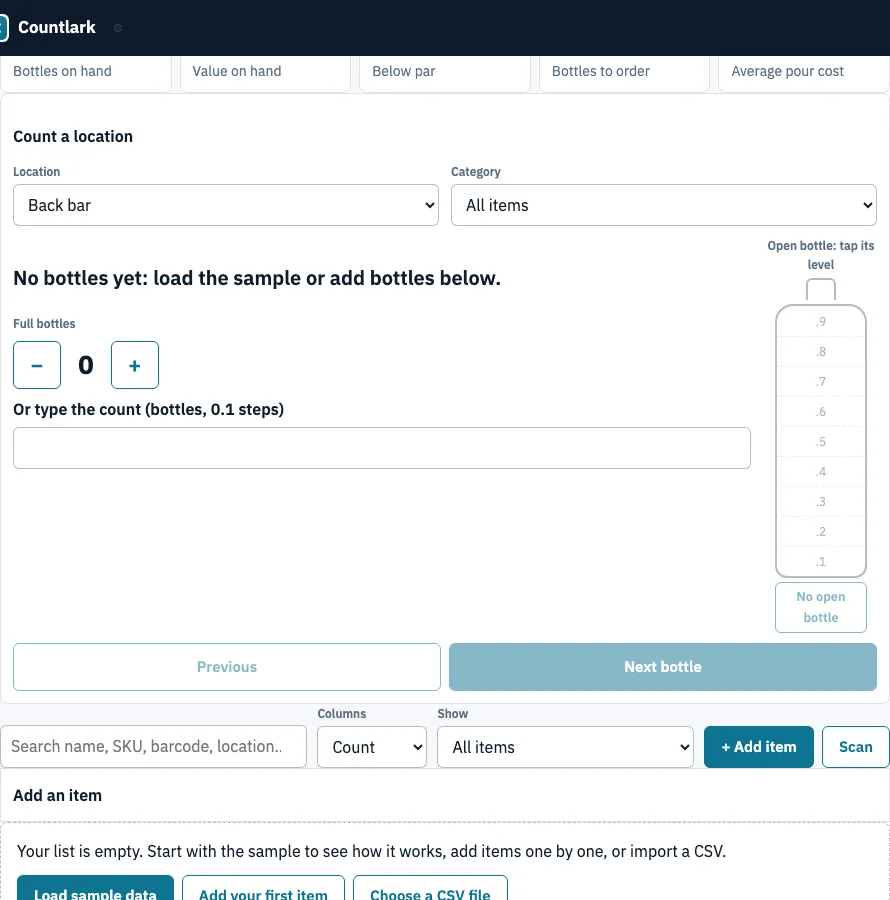
How to use the bar inventory app
- Click “Load sample data” to see a filled list, or click “+ Add item” to add your own. Press Enter after each item to add it and return to the first box.
- Enter a par level for each bottle. Par is the number of bottles you want on hand.
- Open the “Count a location” panel and choose a location (Back bar, Walk-in or Storage). Pick a category if you want to count only part of the list.
- For each bottle, set the full bottles with − and +. For the open bottle, tap its level on the bottle graphic (.1 to .9, or “No open bottle”). You can also use “Or type the count” in 0.1 steps.
- Click “Next bottle” to move on, or “Previous” to go back. The panel shows this location’s count, the total across all locations and the bottles to order.
- Open “Columns” and choose Count to see On hand, Par and Order to par for every item, or Pour cost to see the cost per pour and pour cost %.
- Open the “Order to reach par” panel and click “Download order list (.csv)”.
Click a grid cell to edit it; Enter saves and moves down, and a column header sorts. The “Scan” button opens your camera to read barcodes and QR codes, and the search box finds items by code. The Printable count sheet panel sits below the list; the Excel and CSV exports are under “Import, export, backup and settings”.
How do you do bar inventory?
Count every bottle at every location in tenths, add the three location counts to get on hand, then compare on hand with par to decide what to order. Repeat the count at the same point in your trading week so the figures can be compared from one count to the next.
- Choose one count time and keep to it each time.
- Count each location on its own: Back bar, Walk-in and Storage.
- Estimate each open bottle in tenths (.1 to .9) by eye. No scale is needed.
- Add the three locations for each bottle to get on hand, rounded to 0.1.
- Compare on hand with par and order the difference.
How do you calculate pour cost?
Pour cost is the share of a drink’s price that goes on the liquor. Work out the cost per pour by dividing the bottle cost by the bottle size and multiplying by the pour size, then divide that cost by the drink price to get the percentage. The page gives this formula, but we could not find an official standard for a target percentage.
- Convert the bottle size and pour size to the same unit. 1 US fl oz = 29.5735295625 ml (NIST SP 811 lists 29.57353 ml), so a 1.5 oz pour is 44.36 ml and a 750 ml bottle is 25.4 oz.
- Cost per ml = bottle cost ÷ bottle size. For a 750 ml bottle at 24.00 that is 0.032 per ml.
- Cost per pour = cost per ml × pour size. A 1.5 oz (44.36 ml) pour costs 1.42.
- Pour cost % = cost per pour ÷ drink price. At a drink price of 9.00 the pour cost is 15.8 %.
| Example | Bottle cost | Pour | Result |
|---|---|---|---|
| 750 ml bottle | 24.00 | 1.5 oz (44.36 ml) | 0.032 per ml, 1.42 per pour |
| Same pour sold at 9.00 | 1.42 per pour | 1.5 oz | 15.8 % pour cost |
| 1 litre bottle | 14.50 | 1.5 oz | 0.64 per pour |
| 750 ml bottle | 24.00 | 1.5 oz | 16.9 pours per bottle |
The Pour cost view and the Excel export calculate these figures for each item, using each bottle’s own pour size if it has one.
How much to order to reach par?
Subtract the bottles on hand (all three locations added) from the par level, then round up to whole bottles, because suppliers deliver full bottles. If on hand is at or above par, the order is 0. Multiply by the cost per bottle to see what the order will cost.
- Work out on hand by adding the three location counts.
- Subtract on hand from par.
- Round the result up to a whole number of bottles.
- Multiply the bottles to order by the cost per bottle to get the line cost.
For example, a par of 3 with 1.6 bottles on hand gives 1.4 short, which rounds up to 2 bottles to order. On the sample back bar of 12 bottles, 28.2 bottles are on hand and worth 530.45. Eight lines are below par, and 12 bottles to order cost 234.00.
Frequently asked questions
Is there a free app for managing bar inventory?
Yes, this page is one: it is free and works without an account. Backbar also has a free plan, limited to 1 location and 10 recipes (read 25 October 2026). The list is saved only in your browser, so clear your browser data only after you click “Download backup (.json)”.
What is the best app for inventory barcodes?
Any app that reads the codes already on your bottles saves typing. Here, click “Scan” to read barcodes and QR codes with your camera; the scanning runs in the page and no image is sent anywhere. A USB or Bluetooth scanner that types like a keyboard also works, or you can type the code into the search box and press Enter.
What is the best bar inventory system?
A good system is a fixed count time, a par level for every bottle and an order list worked out from the count. Paid apps such as Backbar ($79 a month on a yearly plan) or Bar Patrol ($49 a month) add several counters, POS links and scales; this page covers one person counting by eye.
Do I need a scale to count open bottles?
No. Levels are estimated by eye in tenths, either by tapping the bottle graphic or by typing the count in 0.1 steps.
Can I import my bar inventory spreadsheet?
Yes. Choose a CSV file or paste cells copied from Excel, Google Sheets or Numbers, then click “Check columns”. An .xlsx file must be pasted or saved as CSV first.
Is there a free bar inventory sheet I can print?
Yes. The Printable count sheet panel prints one row per bottle, sorted by category, with a box for each location and On hand. Print it blank for a paper count, or fill in the current counts. It is a tally template, not an official record.
Does this app connect to a POS or accounting software?
No. Export the list as CSV or Excel and import it into other software yourself.
Can two people count at the same time?
No. The tool runs in one browser on one device for one person at a time, and phones do not sync. To move the list, use “Download backup (.json)” and then “Restore a backup” on the other device.
Related tools
- Inventory app: use it as your starting point for general stock counts.
- Small business inventory software: sale prices, margins and purchase orders per supplier for a shop.
- Inventory management app: use it when you need to record stock going in and out.
- Asset tracking app: use it to follow equipment rather than consumable stock.
- Tool tracking app: use it to record who has which tool and when it is due back.
- Inventory count sheet: use it to run a blind count and see the variance.